Overview
Adding Print Date and Print Time to Crystal Reports provides a system-generated timestamp whenever a document is printed. This improves document traceability, audit readiness, and helps identify exactly when a report was generated.
Configuration
Path:
Crystal Reports → Field Explorer → Special Fields
Add the following fields to your layout:
- ✅ Print Date
- ✅ Print Time
Place them in the desired report section (Page Header, Report Header, or Footer).
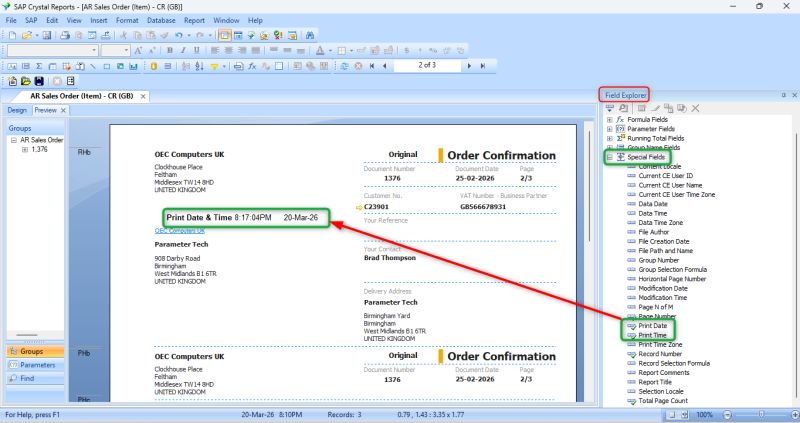
Result
After adding these fields:
- ✔ Displays the actual print date and time.
- ✔ Automatically updates every time the report is printed.
- ✔ Works with all SAP Business One Crystal Report layouts.
- ✔ Requires no database fields or SDK development.
Consultant Tip
- Use Print Date & Print Time instead of Current Date/Time to record the actual print event.
- Format the fields as a single timestamp (e.g., 20-Mar-2026 8:17 PM) for a cleaner layout.
- Place the timestamp in the Page Header if it should appear on every page.
Key Takeaway
A simple Crystal Report enhancement that provides reliable print timestamps, improves auditability, and increases confidence in business documents.
Was this article helpful?
That’s Great!
Thank you for your feedback
Sorry! We couldn't be helpful
Thank you for your feedback
Feedback sent
We appreciate your effort and will try to fix the article